Add multiple TIFF files to the converter and create PDF files from them in one session. You can remove any TIFF that you do not want to process before starting the conversion. This makes it easier to handle several images without converting each file separately.
Adjust the TIFF images before creating the PDF using the available output settings. You can resize the images, add a background color, choose a compression level, correct orientation with Auto Orient, and manage metadata. These options let you prepare the output according to your requirements.
Apply your chosen settings to a single TIFF when only one file needs adjustment. You can also apply the same settings to all added files when they need identical treatment, or use Reset All Options to return to the default settings. This makes it easier to manage different TIFF files in the same conversion session.
Download each converted PDF separately when you only need specific files. You can also use Download All to save the complete set together, helping you save time and effort when several TIFFs have been converted.
The converter has a straightforward and user-friendly interface that does not require complicated steps. Anyone can add TIFF files, adjust the available options, convert them, and save the results with ease. The simple workflow makes the tool convenient even for users who are new to image conversion.
Use the TIFF to PDF converter on computers, tablets, and mobile devices through a web browser. Your TIFF images are processed directly in the browser and are not sent to a server. This provides a secure way to convert images while keeping the files on your device.

Other useful information
Explore our visual guides and infographics
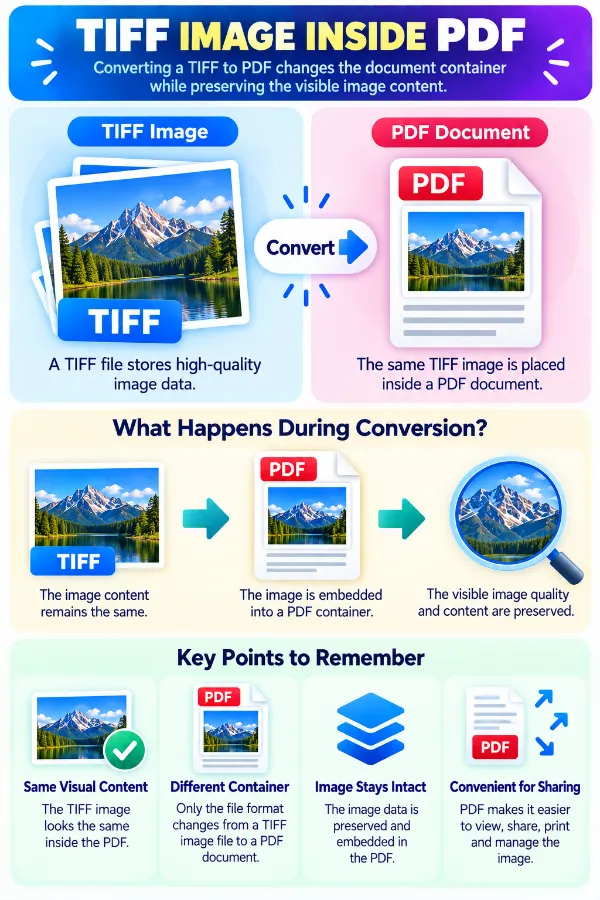
The infographic highlights document-sharing, printing, and workflow situations where pdf may be more convenient.
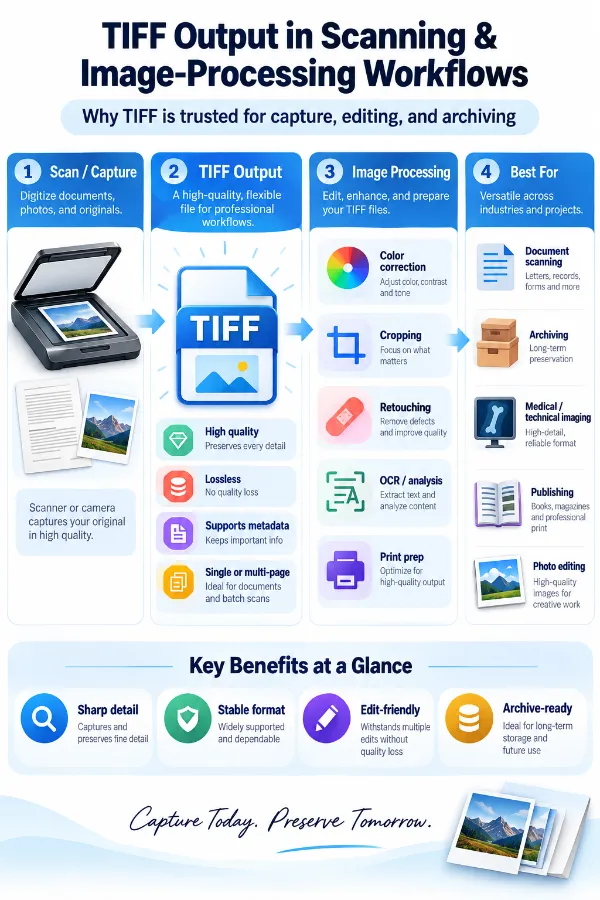
The infographic explains that converting tiff to pdf changes the document container while preserving the visible image content.
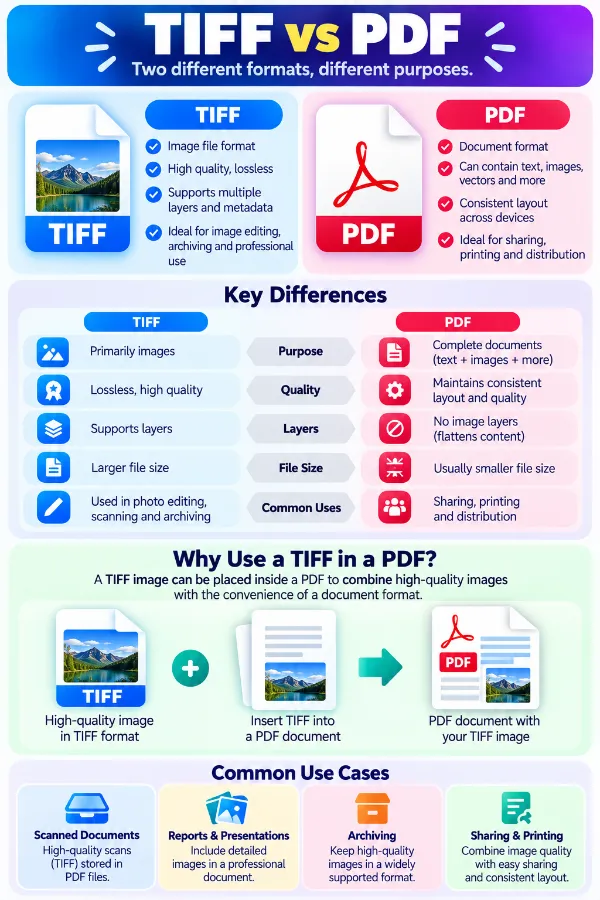
The infographic compares tiff and pdf and explains why an image-based tiff may be placed into a document format.
Frequently Asked Questions
An archival workflow may want to retain the original raster image as its master rather than use a document-oriented derivative. The appropriate choice depends on whether preserving the source image or distributing a document representation is the main goal.
| Security | 100% (No files are sent to server for processing) |
| File size limits | None (No limit on size of files) |
| Usage limits | None (Process as many files as you want) |
| Price | Free |
| User Information Captured | None (We do not request for user information such as email / phone number) |
| Ads | None (We provide complete ad free experience) |
Over 100k Users Rely on Our Imageconverter Converter Monthly
Join a growing community of creators who trust safeimageconverter.com for Convert your images to any format online.