We do not
upload any files to server, hence your data is 100% secure.
Online jpeg to cr2 converter
Turn jpeg images into cr2 with flexible output settings
Add files to convert
Added 0 files
Converting files... (0%)
Converted Files
Image
BMP
EPS
GIF
ICO
JPEG
JPG
JFIF
NEF
HEIC
ODD
PNG
PSD
SVG
TGA
TIFF
WebP
Document
DOC
DOCX
PDF
TXT
RTF
Report
CSV
XLS
XLSX
Advanced Options (Optional)
File name:
Image Options
Choose a method if you want to resize the output image.
We will replace the transparent areas of your image with this color. Choose a color using the color picker or enter a hex color value. (eg. #FFFFFF)
Choose a compression method if you want to reduce the output file size.
Convert Multiple JPEG Images to CR2
Add as many JPEG files as you need to the conversion list using the Add More Files button. You can build a batch instead of processing every image separately. This is useful when several JPEG images need the same CR2 output format.
Resize the Output Before Conversion
The resize controls let you decide whether the converted image should retain its original dimensions or be changed during processing. You can resize by percentage, specific dimensions, width, or height depending on the requirement for the finished file.
Control Output File Size with Compression
The compression settings provide no compression, low, medium, and high compression choices. This gives you control when the resulting files need to fit a particular storage or transfer requirement. Keeping compression low or disabled can be useful when reducing file size is not the main goal.
Manage Orientation and Metadata
Use Auto Orient to correct images based on their stored orientation data, while stripping EXIF, profiles, and comments when needed. Apply the same settings to selected files or the entire batch, or reset them to the defaults.
Adjust Transparency and Background Areas
The Background Color option lets you select a replacement color for transparent areas using the color picker or a hexadecimal value. This matters when the source image contains transparent portions that need a defined background in the processed output.
Download Converted Files Easily
Once the conversion is complete, download each CR2 file separately or get the converted files together. This makes it easier to organize the results when you process several JPEG images in one batch.
Steps to convert JPEG to CR2 format
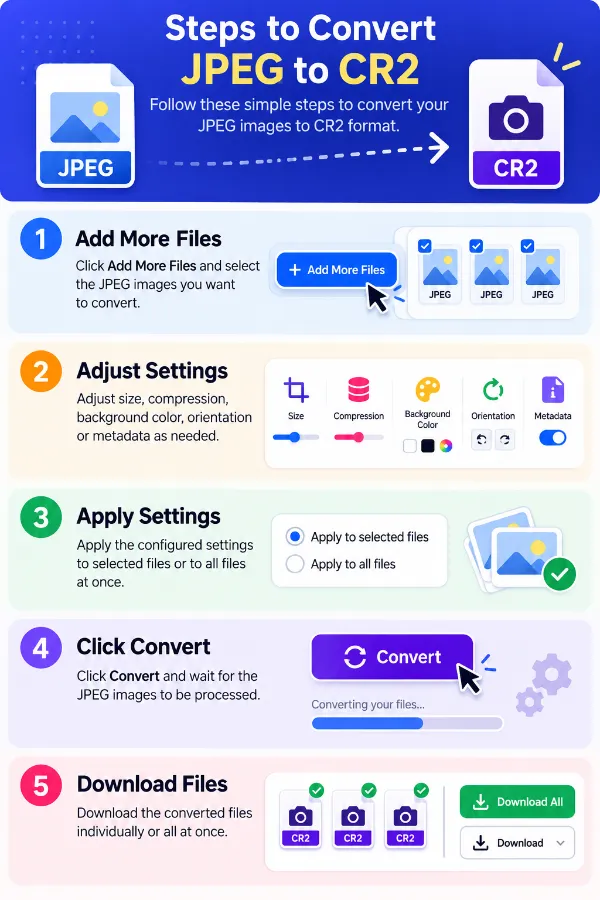
1 . Click Add More Files and select the JPEG images you want to convert.
2 . Adjust size, compression, background color, orientation, or metadata.
3 . Apply settings to selected files or all files.
4 . Click Convert and wait for the JPEG images to be processed.
5 . Download the converted files individually or all at once.
Other useful information
Explore our visual guides and infographics
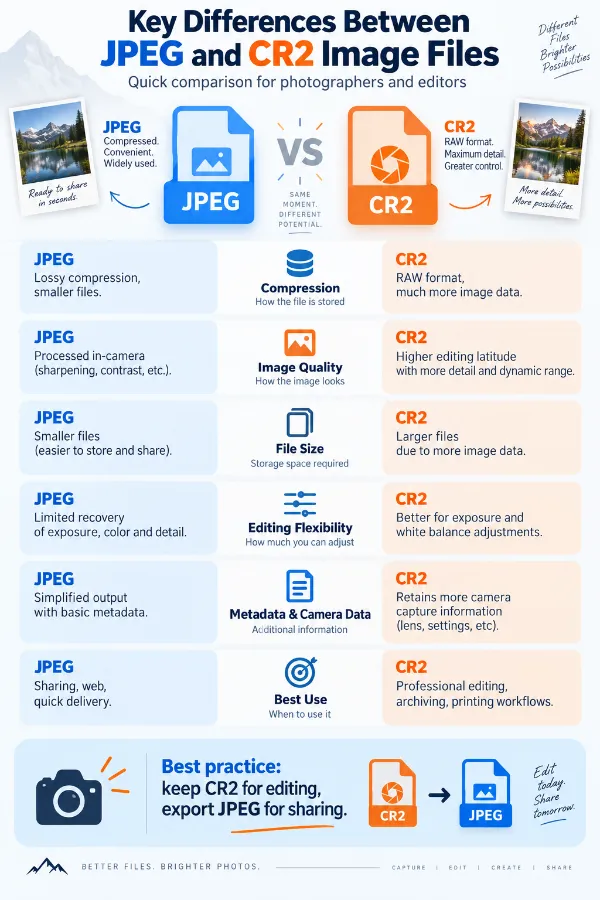
The infographic compares jpeg and cr2 based on how the two formats store and represent photographs.
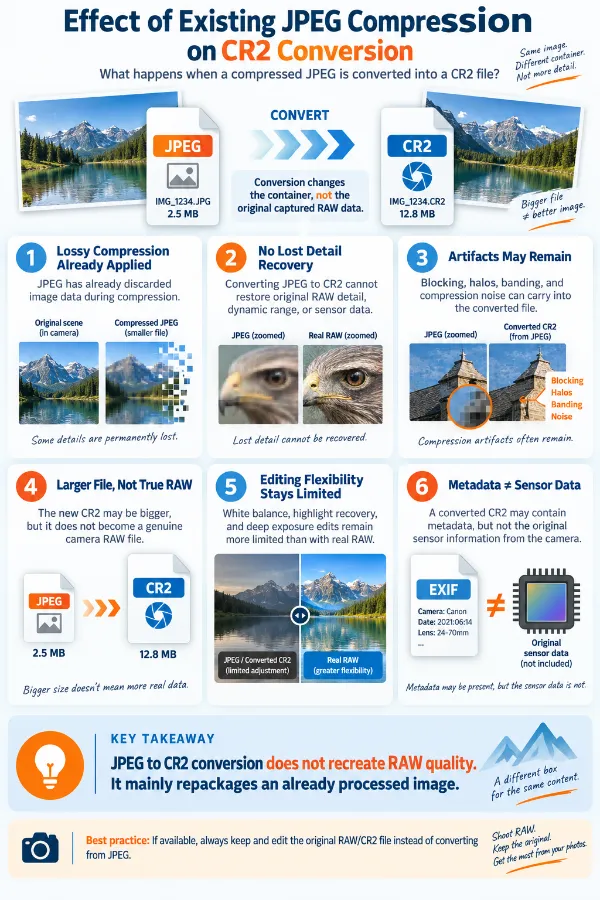
The infographic explains why converting a jpeg cannot undo information already lost through jpeg compression.
The infographic shows simple steps of using the jpeg to cr2 converter.
×
Frequently Asked Questions
Why should we convert a JPEG to CR2?
JPEG and CR2 serve very different purposes, so a user may need CR2 because a particular workflow, application, or file-format requirement expects that format. However, changing a JPEG into CR2 does not recreate the original RAW information from the camera. The resulting CR2 should therefore be treated as a converted file rather than an original camera RAW.
Why might a converted CR2 behave differently from a CR2 from a camera?
A camera-created CR2 contains RAW data and camera-specific information captured as part of the photographic process. A JPEG-to-CR2 conversion starts with an already processed JPEG, so the source does not contain the same underlying sensor information. Software may therefore handle a converted CR2 differently from a native CR2.
Why can a JPEG-to-CR2 file be much larger than the original JPEG?
JPEG uses compression designed to reduce image file size, while changing the representation of the image can result in a substantially larger output. The difference is therefore not necessarily a sign that the converted image has gained additional photographic detail. Output size can also be affected by the selected compression and image-processing settings.
Why would I resize a JPEG while converting it to CR2?
The required CR2 dimensions may be different from the dimensions of the original JPEG. Resizing during conversion can prepare the image for a workflow that has a specific width, height, percentage, or overall dimension requirement. It can also prevent you from having to perform a separate resize operation after conversion.
When should I keep the original JPEG dimensions during conversion?
Keeping the original size makes sense when the dimensions of the source image already meet the requirements of the destination workflow. It also avoids changing the pixel dimensions unnecessarily during format conversion. In that situation, the conversion can focus on changing the file representation rather than altering the image dimensions.
Why does compression matter when converting JPEG to CR2?
A user may need to balance file size against the amount of compression applied during processing. This becomes relevant when converted images need to be stored, transferred, or handled under a file-size restriction. If retaining the largest possible output representation is more important than reducing storage requirements, a lower compression setting may be preferable.
Why would I remove metadata from a JPEG before creating the CR2 output?
JPEG files can contain embedded information such as EXIF data, color profiles, and comments. Removing that information can reduce the amount of non-image data carried with the output and can be useful when the metadata is no longer required. It is worth considering what information your later workflow needs before stripping it.
What could be lost when metadata is stripped?
Metadata can contain information associated with the photograph rather than the visible image itself. Depending on the source, this may include camera or capture information, color-profile information, comments, and other embedded data. If a later application relies on such information, removing it may affect how the file is interpreted or documented.
Why might a JPEG appear rotated after conversion?
Some JPEG files store orientation information in EXIF metadata instead of physically rotating the image pixels. If that orientation information is not handled correctly by a later application, the image can appear sideways or upside down. The Auto Orient option is intended to use the available orientation information during processing.
What is the purpose of Auto Orient when converting JPEG to CR2?
Auto Orient is useful when the source JPEG contains gravity-sensor or EXIF orientation information. Rather than treating the stored pixel orientation alone as the final display orientation, the setting uses that information to help place the image correctly. This is particularly relevant when images from different devices have inconsistent orientation handling.
Why would a transparent JPEG need a background color?
JPEG itself does not preserve transparent areas in the same way formats that support transparency do. If the source or processing workflow involves transparent regions, assigning a background color gives those areas a defined appearance. The background can be selected with the color picker or entered as a hexadecimal value.
What happens if my JPEGs have different dimensions in the same conversion batch?
The source images can naturally have different pixel dimensions, so they do not necessarily have to begin at the same size. If a workflow requires consistent output dimensions, a resize method can be applied to bring the files into a common format. Without such a requirement, retaining the original dimensions avoids unnecessary resizing.
Why might a JPEG converted to CR2 still look exactly like the original JPEG?
Changing the file format does not automatically improve the visual appearance of the source image. The visible picture is still based on the pixels contained in the JPEG, so conversion alone cannot create missing detail or undo previous JPEG processing. A format change and an image-quality enhancement are two different operations.
Can converting JPEG to CR2 improve an already low-quality photograph?
Changing the format cannot create photographic detail that is absent from the JPEG. If the original image is blurry, heavily compressed, poorly exposed, or low in resolution, converting it to CR2 does not reverse those limitations. The conversion is primarily a format-processing operation rather than a method for restoring image quality.
Why would a photographer convert several JPEGs instead of one at a time?
A batch can be more practical when a collection of images needs the same destination format. Processing several files together reduces repetitive format selection and lets common image settings be applied across the conversion list. This is useful for preparing a larger set of images for a specific workflow.
Why a CR2 conversion fail to meet a software or camera requirement?
Not every application that supports CR2 necessarily treats every CR2 file as equivalent. Camera-generated RAW files can contain manufacturer- and camera-specific structures that are not present in an image converted from JPEG. If a program requires a genuine camera RAW file from a particular model, a converted JPEG-to-CR2 file may not satisfy that requirement.
Is JPEG to CR2 a good way to preserve the original RAW data from a camera?
No. If the original camera RAW file is available, it is the file that should be retained for preserving the original RAW capture. JPEG-to-CR2 conversion cannot reconstruct sensor data that was discarded when the photograph was processed into JPEG. The conversion is useful when a CR2-formatted output is required, but it should not be considered a replacement for the original RAW file.
Does this tool support CR2 to JPEG conversion?
No. This page is intended for JPEG to CR2 conversion. For the reverse conversion, you can use the CR2 to JPEG converter.
Our USPs
Security
100% (No files are sent to server for processing)
File size limits
None (No limit on size of files)
Usage limits
None (Process as many files as you want)
Price
Free
User Information Captured
None (We do not request for user information such as email / phone number)
Ads
None (We provide complete ad free experience)
Over 100k Users Rely on Our Imageconverter Converter Monthly
Join a growing community of creators who trust safeimageconverter.com for Convert your images to any format online.
We appreciate your feedback and will use it to improve our services.
About The Author
RK Shree - A science enthusiast with a poetic flair, and possesses an insatiable desire to explore diverse fields seeking new knowledge and experiences. My work ethic is highly disciplined and dedicated. I take pleasure in pursuing creative endeavors that captivate me.