We do not
upload any files to server, hence your data is 100% secure.
Online gif to heic converter
Turn gif files into heic images with adjustable output options
Add files to convert
Added 0 files
Converting files... (0%)
Converted Files
Image
BMP
EPS
GIF
ICO
JPEG
JPG
JFIF
NEF
HEIC
ODD
PNG
PSD
SVG
TGA
TIFF
WebP
Document
DOC
DOCX
PDF
TXT
RTF
Report
CSV
XLS
XLSX
Advanced Options (Optional)
File name:
Image Options
Choose a method if you want to resize the output image.
We will replace the transparent areas of your image with this color. Choose a color using the color picker or enter a hex color value. (eg. #FFFFFF)
Choose a compression method if you want to reduce the output file size.
Turn GIF Files into HEIC Images
Convert GIF files into HEIC without changing file names or opening a separate image editor. The converter prepares the output in HEIC format while keeping the conversion process straightforward. This is useful when an image originally saved as GIF needs to be used in a newer image format.
Work with a Collection of GIFs
Add several GIF files to the same conversion session instead of processing them one at a time. This works well for folders containing downloaded graphics, website images, icons, or other GIF artwork. Each uploaded file remains available in the conversion list until you are ready to process it.
Adjust Size and Background
Prepare the HEIC output by resizing the GIF to its original size, a percentage, specific dimensions, width, or height. If the GIF contains transparent areas, you can also replace them with a chosen background color using the color picker or a HEX value. This gives you control over both the final image size and how transparent portions appear in the converted file.
Optimize the Converted Image
Control different aspects of the HEIC output before conversion with compression, auto orientation, and metadata options. Choose the compression level to manage the resulting file size, use Auto Orient to handle image orientation, and strip profiles, EXIF data, or comments when they are not needed. These options help you prepare a cleaner and more suitable HEIC file in the same conversion process.
Manage Settings for Multiple GIFs
Apply the same selected settings to all uploaded GIF files when they need matching dimensions, background, or compression. If you decide not to use the selected adjustments, Reset All Options lets you return to the default settings before conversion. This makes it easier to manage a batch without setting up each GIF separately.
Flexible Download Process
Save a single HEIC file when you only need a specific result, or use Download All to save the complete set after batch conversion. This gives you a choice between picking individual files and collecting all converted images at once.
Steps to use the GIF to HEIC Converter
1 . Click Add More Files and upload one or more WebP images.
2 . PNG is selected as the default output format.
3 . Open Advanced Options if you need to change the image settings.
4 . Click the Convert button to create the PNG files.
5 . Download individual PNGs or use Download All for batch.
Other useful information
Explore our visual guides and infographics
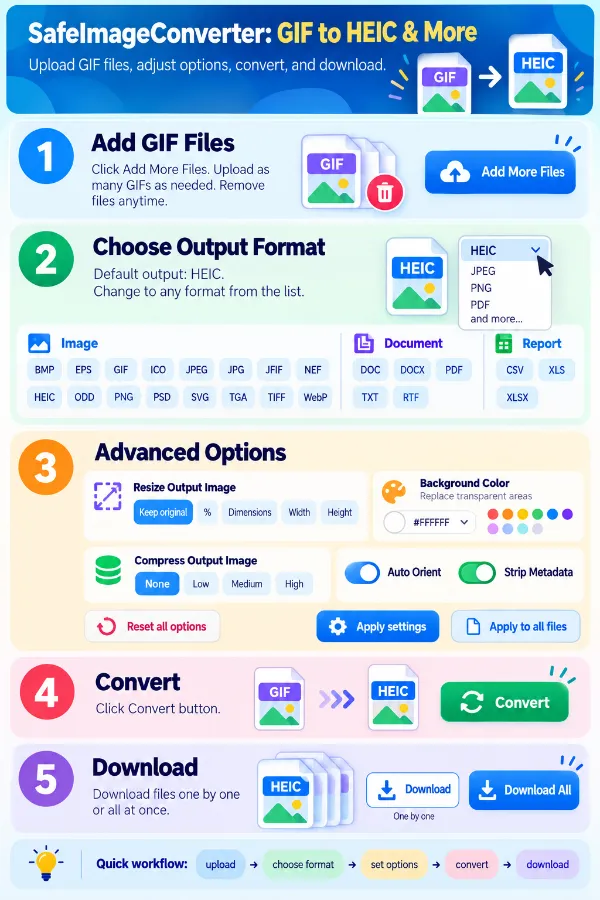
The infographic explains briefly the features of the gif to heic converter
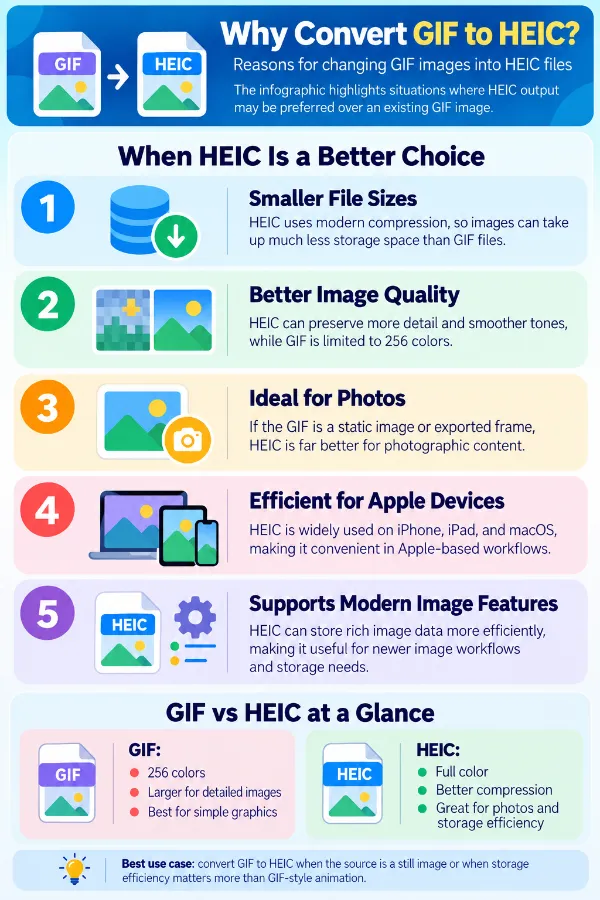
The infographic highlights situations where heic output may be preferred over an existing gif image.
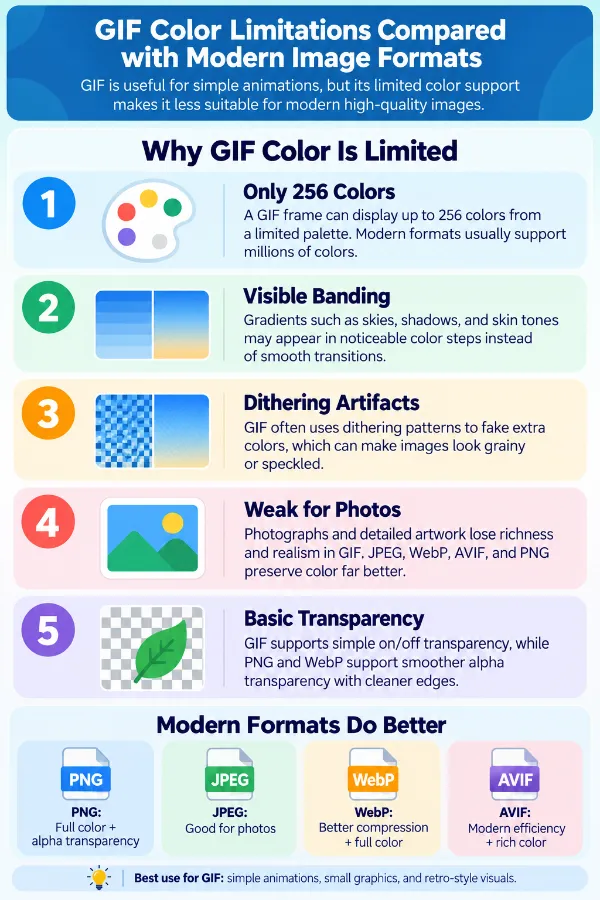
The infographic highlights the limited color characteristics associated with gif images.
×
Frequently Asked Questions
Why does my GIF look different after it becomes a HEIC?
GIF and HEIC are built around different image formats, so the converted image may not look exactly the same as the source. Differences are more noticeable in GIFs with very limited colors, sharp pixel edges, or transparent artwork.
What happens when I convert a GIF that contains several frames?
A GIF can contain multiple frames, particularly when it is animated. How those frames are represented in the HEIC output depends on the conversion and on the application used to open the resulting file.
Does converting GIF to HEIC actually convert the image or just change the file extension?
The converter processes the GIF image and creates a new HEIC file rather than simply renaming the `.gif` extension. The resulting file is encoded in the selected output format so it can be recognized as a HEIC image by compatible software.
Why did an animated GIF appear as one picture after conversion?
A multi-frame GIF and a normal still image are handled differently. If the HEIC opens as one visible picture, the output or the application displaying it may not be presenting the GIF's multiple frames as animation.
Why does the first part of my GIF look correct, but the later movement is missing?
Animated GIFs contain a sequence of frames rather than a single picture. If the resulting HEIC is being displayed as a still image, the other frames may not be presented as part of the visible result.
Why does my GIF's text look slightly different in HEIC?
Small text in GIF files is often created with a limited number of pixels and colors. A change in image representation or dimensions can make thin letters and small characters appear less sharp.
Why does my GIF logo have a different-looking outline in HEIC?
Many GIF logos use transparent or semi-transparent pixels around their edges. When the surrounding pixels are combined with a visible background, the outline can become more noticeable than it was in the original GIF.
Why does a GIF with transparency show a solid background?
Transparency is not always represented in exactly the same way between image formats. If the transparent portion is replaced during conversion, the selected background color will appear behind the graphic.
Why does my GIF look fine on a webpage but different as a downloaded HEIC?
A webpage may display the GIF using its original rendering behavior, including animation and transparency. The HEIC is a newly created image file, so it can have different handling for those properties.
Why does a simple GIF sometimes produce a larger HEIC than expected?
HEIC does not have a fixed file size for every type of source image. The dimensions, amount of visual detail, colors, and selected compression level all affect the resulting file.
Why does resizing my GIF change the way it looks?
Changing the dimensions means the original pixels have to be fitted into a new size. Small graphics, text, and pixel artwork can show the difference more clearly than larger photographs.
Why do circles and diagonal lines look different after resizing?
Curves and diagonal edges are represented using pixels, so changing their dimensions changes how those pixels form the edge. This can make an icon or illustration appear slightly smoother or less sharp.
Why does my converted image have a white background?
A white area can appear when the original GIF contains transparent pixels and those pixels are given a white background during processing. Check the selected background setting if the original image was designed to have transparency.
Why does my HEIC look stretched?
The image can appear stretched when both output dimensions are changed independently and no longer follow the original proportions. Compare the new width and height with the source GIF before converting.
Why does my HEIC look cropped compared with the GIF?
A change in dimensions or the way the image is prepared can cause some of the original image area to be missing from the visible result. Check the output dimensions against the original before processing the file.
Why did my GIF lose information that was specific to the original file?
GIF files can contain information related to frames, animation timing, comments, and other GIF-specific properties. Those details do not necessarily have a direct equivalent in a HEIC image.
Why does my HEIC open on one device but not another?
HEIC support differs between operating systems, browsers, image viewers, and older devices. A file can therefore open normally in one application while another application cannot display it.
Why does an upload website refuse my HEIC even though the file opens normally?
Opening an HEIC successfully does not mean every website accepts the format. Upload services often restrict the formats they allow, so check the destination's accepted image types before converting a large batch.
Why does my HEIC look different in different image viewers?
Applications can interpret image properties and color information differently. If the file changes visually between viewers, compare it in an application that provides reliable HEIC support.
Why does the converted file still seem too large after compression?
Compression reduces the amount of image data, but the final size also depends on the source image and its dimensions. A detailed GIF may remain relatively large even after a compression setting is applied.
Why do some converted GIFs look fine while others need different settings?
GIF files can vary greatly in dimensions, colors, transparency, detail, and frame structure. A setting that works well for a simple graphic may not produce the same result for a detailed or animated GIF.
Is HEIC to GIF supported by the tool?
No. HEIC to GIF is a separate converter. If HEIC is your source format and GIF is your target, use the HEIC to GIF converter.
Our USPs
Security
100% (No files are sent to server for processing)
File size limits
None (No limit on size of files)
Usage limits
None (Process as many files as you want)
Price
Free
User Information Captured
None (We do not request for user information such as email / phone number)
Ads
None (We provide complete ad free experience)
Over 100k Users Rely on Our Imageconverter Converter Monthly
Join a growing community of creators who trust safeimageconverter.com for Convert your images to any format online.
We appreciate your feedback and will use it to improve our services.
About The Author
RK Shree - A science enthusiast with a poetic flair, and possesses an insatiable desire to explore diverse fields seeking new knowledge and experiences. My work ethic is highly disciplined and dedicated. I take pleasure in pursuing creative endeavors that captivate me.