Click Add More Files and upload as many PNG images as you need for the conversion. You can remove individual files whenever you want before starting the conversion. This makes it convenient to convert a group of PNG images in one session instead of processing them one by one.
The workflow is straightforward. You need to upload your PNG files, adjust settings if required, and click Convert. PSD is selected as the default output format for this page. The simple interface makes the converter easy to use even if you are not familiar with image conversion tools.
You can adjust the images before creating the PSD files using the available settings. Choose how to resize the output, replace transparent areas with a background color, reduce file size with compression, correct orientation using EXIF data, or strip profiles, EXIF, and comments. These options let you prepare the converted files according to your requirements.
You can apply your chosen settings to an individual PNG file when different images need different treatment. If several files need the same adjustments, use Apply to All Files instead. You can also click Reset All Options to return the settings to their defaults.
PSD is the default output for the PNG-to-PSD page, but you can select another supported format when your project requires a different file type. The available choices include image formats such as BMP, GIF, ICO, JPEG, JPG, JFIF, NEF, HEIC, PNG, SVG, TIFF, and WebP, along with document and report formats such as DOCX, PDF, TXT, CSV, XLS, and XLSX. This gives you more flexibility without needing to leave the converter.
After conversion, you can download individual PSD files or use Download All to save the complete set together. The converter works through a web browser on computers, tablets, and mobile devices, so you do not need desktop software. Your files are processed in the browser and are not sent to a server, providing a secure way to convert your PNG images.

Other useful information
Explore our visual guides and infographics
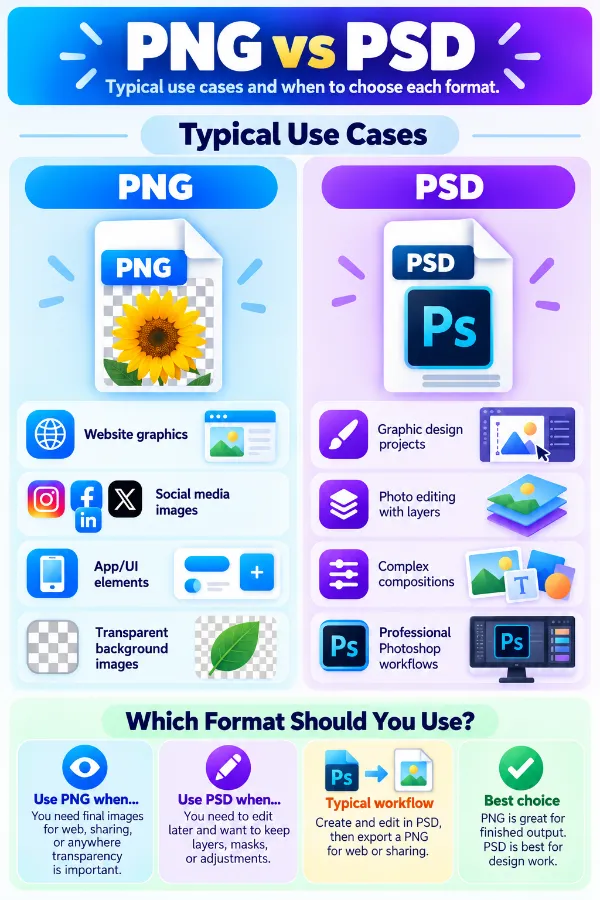
The infographic compares png and psd and explains their different roles in graphics and editing workflows.
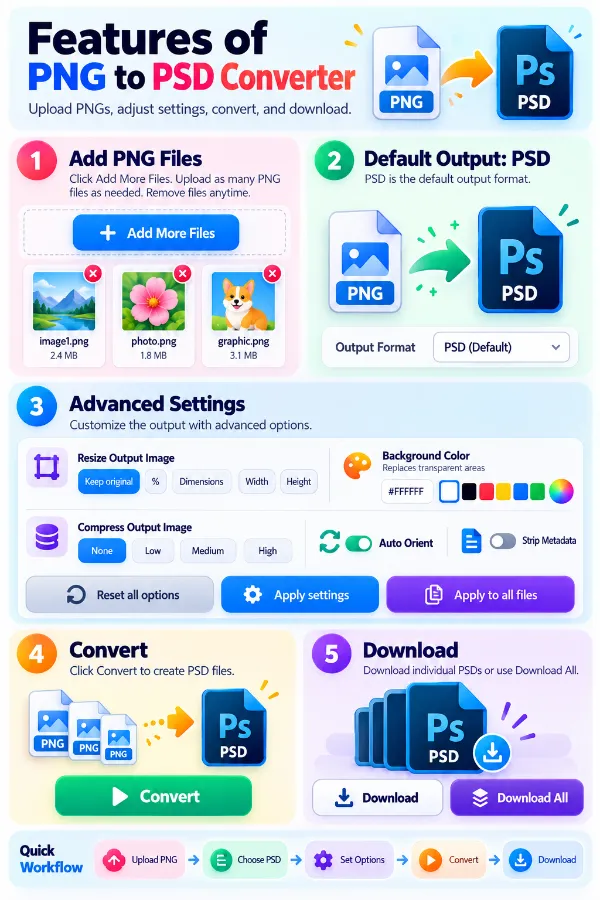
The infographic shows the main features of png to psd conversion tool
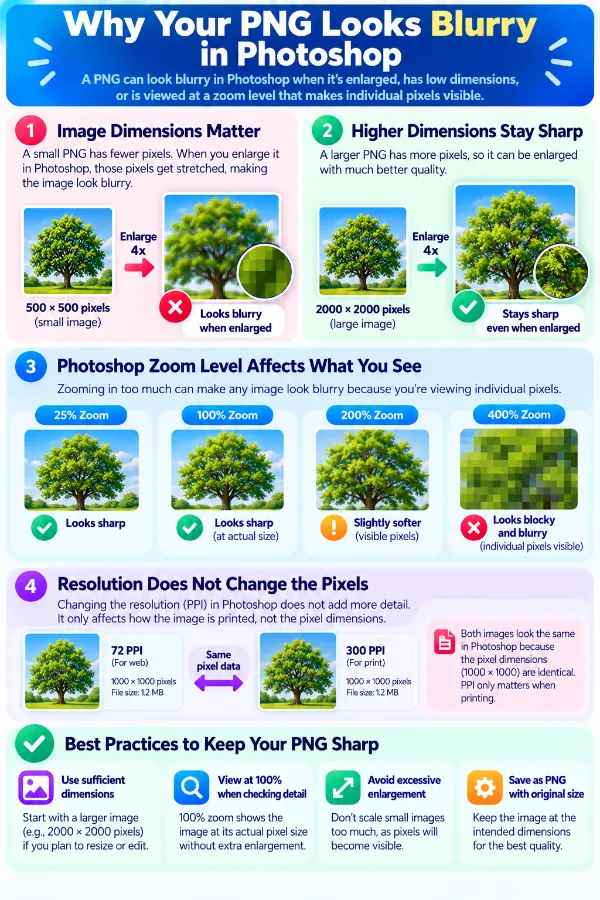
Infographic showing how a small png becomes blurry when enlarged in photoshop.
Frequently Asked Questions
PNG to PSD is most useful when an existing raster graphic needs to be supplied in PSD format for a design or editing workflow. It is particularly practical when the original PSD is unavailable, while keeping in mind that the conversion cannot recreate missing layers or other original project information.
| Security | 100% (No files are sent to server for processing) |
| File size limits | None (No limit on size of files) |
| Usage limits | None (Process as many files as you want) |
| Price | Free |
| User Information Captured | None (We do not request for user information such as email / phone number) |
| Ads | None (We provide complete ad free experience) |
Over 100k Users Rely on Our Imageconverter Converter Monthly
Join a growing community of creators who trust safeimageconverter.com for Convert your images to any format online.