We do not
upload any files to server, hence your data is 100% secure.
Online webp to png converter
Turn webp files to png while preserving quality.
Add files to convert
Added 0 files
Converting files... (0%)
Converted Files
Image
BMP
EPS
GIF
ICO
JPEG
JPG
JFIF
NEF
HEIC
ODD
PNG
PSD
SVG
TGA
TIFF
WebP
Document
DOC
DOCX
PDF
TXT
RTF
Report
CSV
XLS
XLSX
Advanced Options (Optional)
File name:
Image Options
Choose a method if you want to resize the output image.
We will replace the transparent areas of your image with this color. Choose a color using the color picker or enter a hex color value. (eg. #FFFFFF)
Choose a compression method if you want to reduce the output file size.
Convert a WebP Collection Together
Upload as many WebP files as you need through Add More Files and process them in the same session. PNG is selected as the default output, so you can begin the conversion without changing the format first. This is useful when several WebP images need to be prepared for the same project or destination.
Resize the Output
Choose how the converted PNG should be sized instead of always keeping the WebP's original dimensions. You can retain the original size or resize by percentage, dimensions, width, or height depending on the result you need. This is helpful when PNG images have to fit a particular space, layout, or image requirement.
Control File Size and Transparent Areas
Choose a compression level when the resulting PNG needs to be smaller, or leave compression off when you want to avoid additional compression. For WebP images containing transparent sections, you can replace those areas with a selected color using the color picker or a HEX value. These settings let you prepare the appearance and file size of the PNG in the same workflow.
Correct Orientation and Clean Image Information
Auto Orient can use gravity sensor information stored in EXIF to correct the image's orientation during processing. You can also remove profiles, EXIF information, and comments with Strip Metadata when that information is no longer required. This gives you control over how the PNG is oriented and what embedded image information remains in the output.
Apply Settings to One File or Batch
You can apply your selected settings to a single WebP or use Apply to All Files when the same treatment is needed throughout the uploaded collection. If the adjustments do not give you the result you want, Reset All Options returns the controls to their default settings. This makes it easier to experiment without having to rebuild the conversion session.
Save Individual PNGs or the Complete Batch
After conversion, each PNG can be downloaded separately when you only need a particular image. When the entire collection is ready, Download All lets you save the converted files together. This gives you a practical way to handle both single-image conversions and larger batches.
Step to use the WebP to PNG Converter
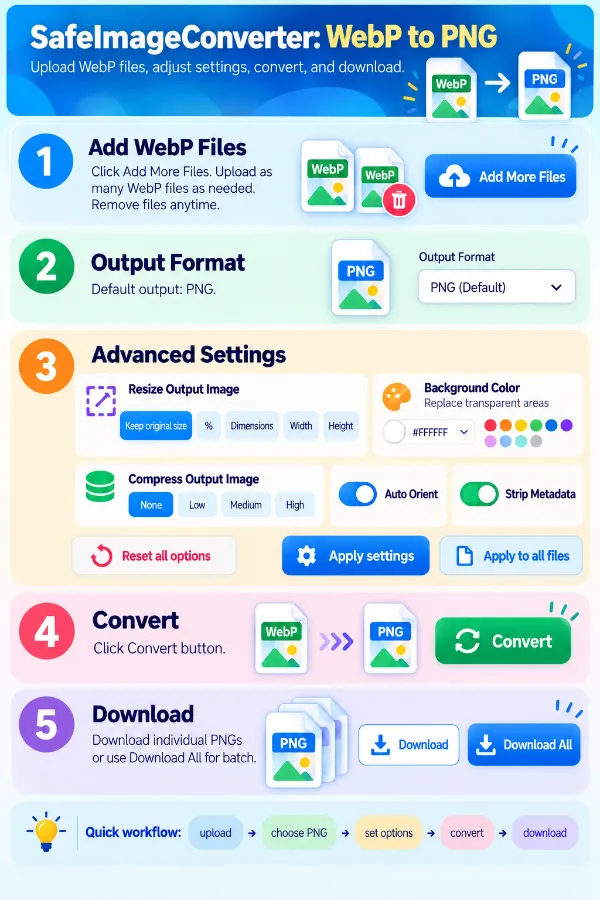
1 . Click Add More Files and upload one or more WebP images.
2 . PNG is selected as the default output format.
3 . Open image settings if you need to change the image settings.
4 . Click the Convert button to create the PNG files.
5 . Download individual PNGs or use Download All for batch.
Other useful information
Explore our visual guides and infographics
The inforaphic explains the simple steps to use the webp to png conversion tool
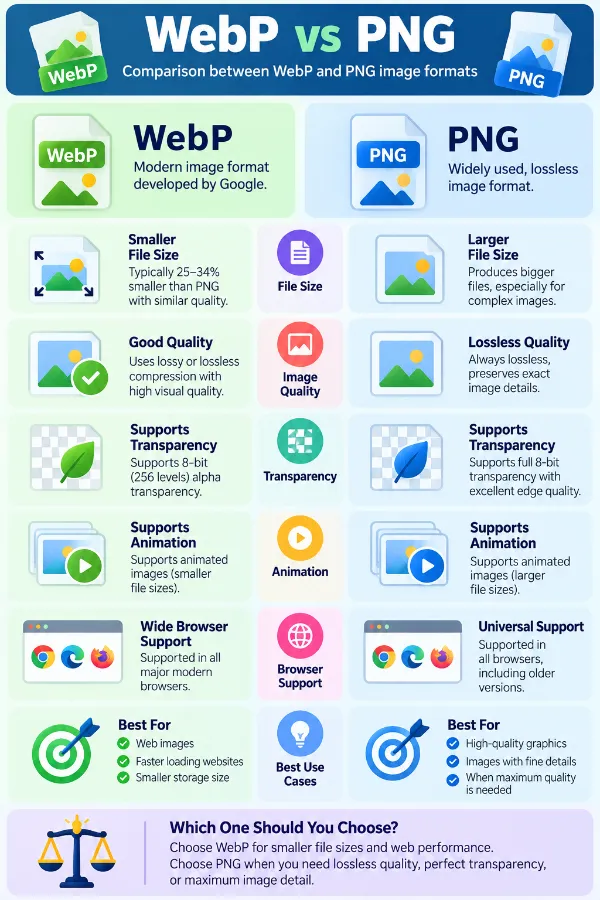
The infographic compares webp and png and explains why users may choose one format over the other.
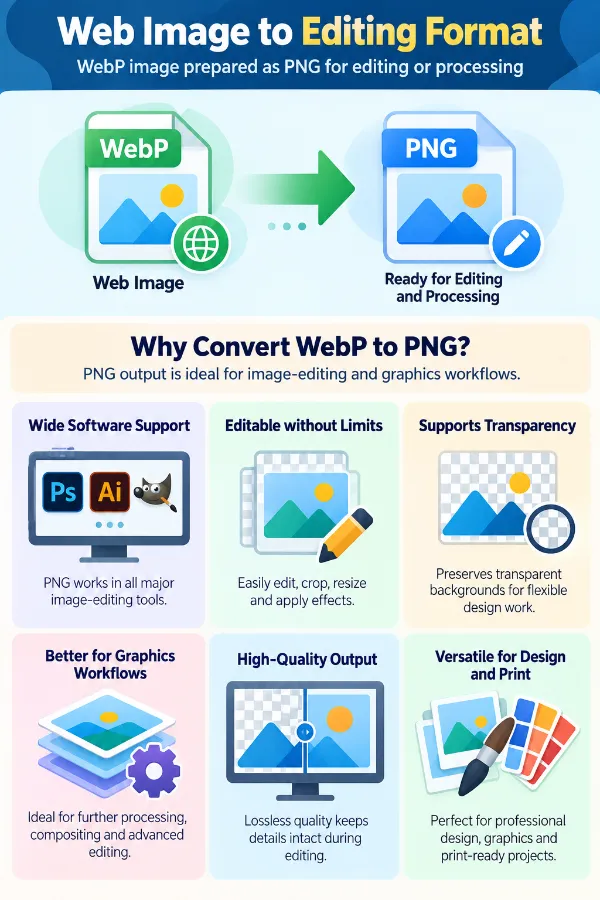
The infographic shows why png output can be useful for image-editing and graphics workflows.
×
Frequently Asked Questions
Will converting WebP to PNG bring back quality that was already lost?
No. Converting a WebP image to PNG changes the file format, but it cannot restore detail that was already lost when the original WebP was created with lossy compression. The PNG can preserve the information available in the WebP at the time of conversion.
Why did my PNG become much larger than the original WebP?
WebP is designed to store many images efficiently, while PNG commonly produces larger files, particularly for photographs and detailed images. A significant increase in file size after WebP to PNG conversion is therefore normal.
Why did a transparent WebP get a colored background in PNG?
The WebP may contain transparent pixels that are being replaced with a visible background during processing. Once a background color is applied, those areas will no longer appear transparent in the resulting PNG.
Why does a white box appear around my WebP logo?
The original logo may rely on transparency around its edges. If those transparent pixels are replaced with white, the previously invisible area becomes a visible white region around the logo.
Why do the edges around my transparent WebP look different in PNG?
Transparent WebP graphics can contain partially transparent pixels around curved or detailed edges. When those pixels are displayed against a different background, a faint outline or change in the edge can become noticeable.
Why does my converted PNG have the same dimensions but look slightly different?
Keeping the same width and height does not mean the two formats will display every pixel in exactly the same way. The WebP's original encoding, transparency, color information, and the conversion process can all contribute to small visual differences.
Why are the colors slightly different in my PNG?
WebP and PNG can store and interpret image color information differently. Small changes can become noticeable in photographs, gradients, or graphics containing very close shades.
Why does a gradient look different after WebP to PNG conversion?
A gradient contains many gradually changing shades, making small differences in color representation easier to see. If the original WebP was already compressed, converting it to PNG does not recreate the original uncompressed gradient.
Why does my small text look blurry in the PNG?
Small text depends heavily on the exact pixels used to form its edges. If the WebP was already reduced in size or had compression applied, converting it to PNG cannot recover detail that is no longer present.
Why do thin lines in my converted PNG look uneven?
Very thin lines can occupy only a small number of pixels, so even a minor change in scaling or image rendering can affect their appearance. This is particularly noticeable in diagrams, screenshots, icons, and interface graphics.
Why does my PNG look different when I open it on a different background?
This is especially common with transparent images. Partially transparent pixels around an object can blend with the background underneath them, making the same PNG appear slightly different against light and dark surfaces.
Why did my transparent WebP lose its transparent areas?
The transparent portions may have been replaced by a background color during processing. Once those pixels are filled with a visible color, the PNG will display that color instead of showing the background underneath.
Why is part of my image missing after resizing?
A resized image can look different if its new dimensions do not suit the original proportions. Compare the chosen output dimensions with the source dimensions, particularly when the image contains objects close to its edges.
Why did removing metadata change how my image is displayed?
Metadata can contain information such as orientation and color profiles in addition to other image details. Removing it can therefore affect how some applications interpret the image, even though the visible picture itself has not been intentionally edited.
Why does my converted PNG no longer contain the original WebP metadata?
WebP and PNG do not use metadata in exactly the same way. If Strip Metadata is used, profiles, EXIF information, and comments are removed from the processed image rather than carried into the resulting PNG.
Why is my PNG still large even after choosing compression?
Compression can reduce the output size, but the result depends heavily on the image itself. Photographs, detailed artwork, and large-dimension images generally contain much more information than simple icons or flat graphics.
Why does a photograph become especially large when converted from WebP to PNG?
WebP is particularly efficient for storing photographic images, while PNG is often better suited to graphics with areas of solid color, transparency, or sharp edges. As a result, photographs can experience a substantial file-size increase when changed to PNG.
Why does my animated WebP not behave the same after conversion?
Animated WebP contains multiple frames rather than one ordinary still image. How those frames are represented or displayed after conversion depends on the resulting file and the application being used to open it, so animation should not be assumed to behave exactly like the original WebP.
Why does the converted PNG look fine in an image viewer but different when uploaded to a website?
Websites can process uploaded images again or display them through their own image-rendering systems. The website may also resize, optimize, or otherwise process the PNG after upload, changing how it appears compared with the original downloaded file.
Why did my WebP icon become noticeably larger than PNG?
Icons and interface graphics often contain transparency and relatively simple shapes, while PNG stores that information differently from WebP. The PNG may therefore require considerably more storage even though the visible image dimensions remain unchanged.
Why would I convert a WebP image to PNG if the PNG file is larger?
PNG is widely used when transparent backgrounds, editing workflows, graphics, screenshots, or compatibility with particular software are more important than keeping the smallest possible file. Converting to PNG can therefore be useful when the destination specifically works better with PNG images.
Which tool should I use for PNG to WEBP conversion?
We appreciate your feedback and will use it to improve our services.
About The Author
RK Shree - A science enthusiast with a poetic flair, and possesses an insatiable desire to explore diverse fields seeking new knowledge and experiences. My work ethic is highly disciplined and dedicated. I take pleasure in pursuing creative endeavors that captivate me.